
How to Create Motion Graphics for Your Startup in 10 Minutes
March 18, 2025 • By Nick Nicolaou
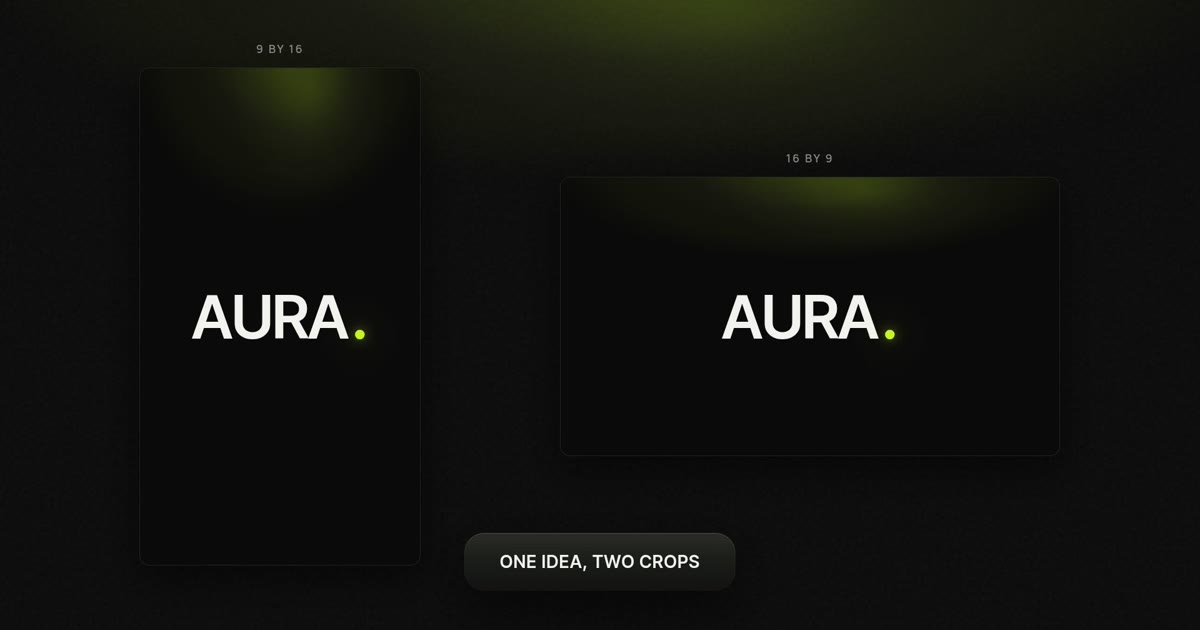
Your launch page needs a 15 second animated clip by Friday. The motion designer you emailed came back with a four figure quote, and the After Effects tutorial you opened runs longer than the clip you actually want. One sentence in, finished clip out.
The honest trade-off: plans are credit-capped, so you are budgeting generations, and you get less frame-level control than a timeline editor.
The numbers: ten minutes covers writing, generating and one revision, and entry is Starter at $19/month with 500 credits and 60 video exports.
- You already shot the footage and just need to cut it with animated titles on top. That's CapCut or Premiere, not a generator.
- The animation has to ship as a Lottie or JSON file that your app plays at any size. That's After Effects with a Lottie exporter.
- You need a real 3D product render with exact geometry. That's Blender or Cinema 4D.
Everything else on this page, we use daily.
Quick answer
The fastest method: open MotionVid.ai, write one sentence naming the subject, the motion and the on-screen text, pick a style pack, generate and export. Use motion graphics from text for charts, explainer scenes and metric cards, and image to video when you already have a logo or product shot to animate.
Full disclosure: MotionVid.ai is our product, so read this page with that in mind. Three jobs where another tool genuinely wins:
How we tested this workflow
How we source this: the MotionVid steps below come from building product clips, logo animations and explainer scenes in the tool ourselves. Competitor prices are not quoted here as numbers, because they come from those companies' own published pricing pages and change without notice.
Last verified 21 September 2026, with MotionVid plan prices checked against motionvid.ai/pricing on that date.
By the numbers
- 4 of 4 MotionVid plans are credit-capped rather than unlimited: Starter 500, Pro 800, Ultimate 1,500 and Creator 8,000 credits a month, per motionvid.ai/pricing as of September 2026.
- 60 of 60: MotionVid's Starter plan publishes 60 video exports a month, so a 60-clip month lands exactly on the export ceiling.
- 100 of 100: MotionVid's Pro plan is $29/month for 100 published video exports, which works out to $0.29 per export if you use the full cap.
- 2 of 4 MotionVid plans include the developer API and bring-your-own-keys: Ultimate at $49/month and Creator at $249/month, per its published pricing.
- 4 of 4 paid MotionVid plans can generate video from Claude or another AI app through the MCP connector, per the docs at motionvid.ai/api.
- 5 of the 10 results ranking for this query in September 2026 are YouTube tutorials, which is a directional snapshot of the SERP, not a stable count.
How to create motion graphics for your startup, step by step
In one line: write one sentence about what should move, pick a mode, pick a style pack, generate, fix one thing, export.
Before you make anything, know what you are making. A startup launch ships four clips, and they are always the same four:
- The hero reveal: your logo file animated into a 15-second clip for the top of the landing page, made with image to video.
- The feature explainer: one mechanic of the product shown as a chart or diagram building on screen, made with motion graphics from text.
- The social loop: the same hero idea regenerated at 9:16 for Reels and Shorts, generated fresh at that ratio rather than cropped down from the 16:9 export.
- The metric card: one number counting up (signups, waitlist, day-one revenue) for the launch-day post, also motion graphics from text.
The ten-minute workflow below produces any one of those four. The steps do not change between them. Only the prompt does, so once you have run it once you have run it for all four.
The ten minutes below assume you have your logo file and your brand hex codes open. If you are hunting for those, add five minutes.
1. Write the one sentence the clip has to land (1 minute)
Before you touch the app, write the single outcome a viewer should walk away with. Not three features. One.
Good: "Support tickets get sorted before your team wakes up." Bad: "An AI-powered platform for modern support teams with routing, analytics and integrations."
What good looks like: a sentence a stranger can repeat back after hearing it once.
The mistake: writing your feature list. A 15 second clip fits one idea, and every extra idea steals seconds from the one that matters.
2. Pick the mode before you write the prompt (1 minute)
MotionVid splits the job by what you are starting from. Motion graphics from text builds scenes, charts and kinetic type from a description. Image to video animates a file you already have, which is the right pick for a logo or a product shot. Start and end animation lets you pin the first and last frame. Before and after does the split-reveal. Templates skip the prompt entirely.
What good looks like: the mode matches your starting material, so the generator is not re-inventing your logo.
The mistake: describing your logo in text when the SVG or PNG is sitting on your desktop. Upload it and use image to video.
3. Write the prompt in four parts (2 minutes)
Subject, motion, on-screen text, and the look. In that order. Copy this and swap the details:
> Animate this logo for a SaaS launch. The mark assembles from four rounded rectangles that slide in from the frame edges, settles center frame, then the wordmark fades in underneath it. Background deep navy #0B1F3A, accent coral #FF6B4A. On-screen text: "Shipday. Routing that books itself." Hold the final frame for 1.5 seconds. 16:9.
For an explainer scene rather than a logo, the shape is the same:
> A clean infographic scene: a bar chart builds left to right over four quarters while a label counts up to 38%. Flat vector, off-white background, one accent color #FF6B4A. On-screen text: "Q4 churn, after routing." Slow, steady build, no camera shake. 16:9.
The metric card is the same four parts again, with a number doing the moving:
> A single large number counting up from 0 to 1,240 center frame, with the label "Waitlist signups, day one" settling underneath as the count stops. Flat vector, deep navy #0B1F3A background, coral #FF6B4A on the number only. Hold the final frame for 2 seconds. 1:1.
And the social loop, generated vertical natively instead of cropped down from the 16:9 version:
> The same logo assemble, reframed for vertical. The mark builds center frame in the upper third, the wordmark and tagline stack underneath with room for a caption bar at the bottom. Deep navy #0B1F3A, coral #FF6B4A accent. On-screen text: "Shipday. Routing that books itself." 9:16.
Four different clips, and the formula never changed. Only the nouns did.
What good looks like: every noun in the prompt describes something that moves or something that is written on screen.
The mistake: stacking adjectives. "Premium, dynamic, modern, professional" tells the model nothing. "Slides in from the left over one second and stops hard" tells it everything.
4. Pick a style pack and lock your colors (1 minute)
Style packs are the fastest route to a consistent look across a whole channel. The named packs live in the app: Vox (bold cutout explainer), Vox Map - Vintage, Johnny Harris (collage documentary), Johnny Harris Map - Modern, and the News Map set in Atlas, Blueprint, Navy and Noir. These are style names inspired by those looks. MotionVid is not affiliated with or endorsed by Vox Media or Johnny Harris, and neither uses or recommends it.
Put your hex codes in the prompt every time, or save them once in a brand kit so you are not retyping them.
What good looks like: clip four and clip fourteen look like they came from the same company.
The mistake: changing packs between videos because a new one looked nice. Brand recognition comes from repetition, and the style pack is most of it.
5. Generate, then judge the first pass on three things (2 minutes)
Generation itself is not work, it is waiting. Queue time plus render time, and how long that runs depends on the mode you picked and how long the clip is. The two minutes budgeted here is the review you write while it renders, plus the judgement call when the finished clip lands.
When it does land, check three things and nothing else: whether the text is legible at phone size, whether the motion carries the point instead of decorating it, and whether the last frame holds long enough to actually read. That is the whole review. If you come out of it able to name the single line of the prompt you would change, it worked. The failure mode is regenerating the entire clip because one element is off, so edit the sentence that produced the problem, re-run, and leave the elements that were already fine alone instead of burning credits reshuffling them.
6. Turn on narration, music and sound effects (1 minute)
MotionVid generates audio with the video through per-project toggles, so narration, a music bed and sound effects come out in the same render. Pick the voice, set the music low enough that it sits under the words. If you want one exact sound, a specific whoosh on the logo snap, you can still drop your own sting into an editor afterwards.
What good looks like: you can understand the narration with the music playing at full volume.
The mistake: accepting a music bed that competes with the voice. Autoplay on a landing page is usually muted anyway, so the on-screen text has to work silent.
7. Export in the shape it will actually live in (1 to 2 minutes)
16:9 for the launch page and YouTube, 9:16 for Reels, Shorts and TikTok, 1:1 for the LinkedIn feed. Generate each aspect ratio rather than cropping one down. Export limits are published per plan: 60 a month on Starter, 100 on Pro, 200 on Ultimate, unlimited on Creator, and yearly billing makes Pro and Ultimate exports unlimited. Pro adds 4K infographic exports for anything going on a big screen.
What good looks like: the file drops straight into the page or the scheduler with no re-frame.
The mistake: cropping a 16:9 export to vertical and losing the text you carefully sized.
The whole thing, start to finish
A made-up startup so the steps are concrete. Shipday, a routing tool for delivery fleets, needs a hero clip for the launch page.
Mode: image to video, logo PNG uploaded.
Prompt: the logo prompt from step 3, with Shipday's hex codes swapped in (deep navy #0B1F3A, coral #FF6B4A) and the on-screen line changed to "Shipday. Routing that books itself."
Settings: Vox style pack, 16:9, narration off (it autoplays muted on the page), light music bed on, one sound effect pass for the assemble.
First pass: the mark landed, the wordmark came in too fast to read. Changed one line to "the wordmark fades in over one second and holds" and re-ran.
Export: MP4, 16:9 for the page, then a second generation at 9:16 for the launch-day Reel. Elapsed: under ten minutes including the revision.
If your clip is specifically a launch announcement, the longer breakdown is in our product-launch motion graphics guide.
Tips that make it look professional
Size on-screen text against the frame, not the preview. On a 1080p export keep cap height around 90 pixels, roughly a twelfth of the frame, with six words per card as the ceiling. Watch the 9:16 social loop on your phone before you ship it, because what reads fine on a 27-inch monitor disappears between two other videos in a scroll.
Time every text change to a downbeat on the feature explainer. That clip carries the most cards, so drift shows up there first. Pick the music before you animate anything, then reuse the same grid on the social loop cutdown.
Check contrast against the busiest frame of the feature explainer, not the calmest. Text gets designed over the clean opening shot and breaks halfway through when a chart build fills the frame behind it. If it fails there, a 40% to 60% dark scrim behind the text block fixes it faster than hunting for a new colour.
Give one accent colour the whole job, and enforce that hardest on the metric card. A single number has to land, so everything else stays in greys, off-whites and one dark neutral, with a secondary brand colour used as a background tone rather than a second thing competing for the eye.
8. MotionVid: best for startup launch clips, logo animations and explainer scenes
In one line: MotionVid is the pick when your starting material is a logo, a product shot or a written script rather than footage you already filmed.
What it is. MotionVid.ai is an AI motion graphics and video generation tool. Text, a logo file, a product photo or a rough drawing goes in; animated scenes come out in a browser, with narration, music and sound effects generated alongside the picture.
Best for. Exactly the four clips a launch ships: the hero reveal from your logo, the feature explainer built from a script, the 9:16 social loop, and the metric card. Style packs keep clip four and clip fourteen looking like the same company.
The real number. Starter is $19/month for 500 credits and 60 exports, which covers a launch set with a couple of revisions; Pro at $29 buys the headroom most teams end up wanting. Worked math is in the cost section below.
The gotcha. Credits and exports are two separate ceilings and whichever you hit first stops you, so a discarded generation costs the same as a keeper. Budget two or three passes per clip you actually ship.
Where it loses. It will not cut footage you already filmed, so a founder-to-camera launch video belongs in CapCut or Premiere. It gives you less frame-level control than a timeline, so client work with per-frame revision notes belongs in After Effects. And it is not a static design tool: if your brand lives as a deck template and a social graphic set, Canva is the better buy. Every paid plan can drive it from Claude or another AI app through the MCP connector; the developer API starts on Ultimate.
9. Canva: consider only for static brand assets and light animation inside decks
Canva is a design tool that added motion, not a motion tool. Its animation presets earn their keep on things you have already designed: a title card that slides in, a deck where each build animates on click, a social graphic where the logo and the headline arrive on their own timing. Two people can be in the same file in a browser at once, which matters more than it sounds when a client wants the headline changed an hour before posting. For a template you will reuse fifty times with swapped text and colors, it is hard to beat.
The boundary is sharp. Canva animates elements you placed; it does not build a scene from a sentence. You cannot type "flight arc from Dubai to Lagos with the route drawing in" or "bar chart counting up to 40% with labels" or "a cutout explainer scene about container shipping" and get an animated result back. Someone has to design every layer first, then choose a preset for each one. That is the step the ten-minute workflow skips, and it is why a chart build, a map explainer or a full motion graphics scene lands outside what Canva does. If your work is mostly graphics with light movement on top, stay. If the output itself is the animation, you will be building it by hand.
Canva lists its current plan prices at canva.com/pricing.
10. CapCut: consider only for cutting footage you already shot
CapCut is an editor, and a good one for a phone-first workflow. If you filmed a demo on your desk and want captions, animated titles and a trending audio track over it, this is the correct seat and the generator is the wrong one. It also has a free tier, which makes it the honest answer for a true $0 budget.
Where it stops: it animates assets you bring, so a chart, a map explainer or a logo build still has to be made somewhere else first. Pricing and current free limits are published at capcut.com; verify there rather than trusting any number in a blog post, including this one.
11. After Effects: consider only when you need frame-level control or a Lottie export
Adobe After Effects is still the ceiling for precision. If a client hands you a spec with exact easing curves, or the animation has to ship as a Lottie JSON file that your app renders at any size, nothing here replaces it. That is a real and narrow set of jobs.
The cost is the learning curve, which is measured in weeks, plus a subscription. Adobe publishes Creative Cloud plan prices at adobe.com/creativecloud/plans; we are not quoting a figure we have not verified as of September 2026. The side-by-side on the overlap is in MotionVid vs After Effects.
What it costs
In one line: if you ship 60 clips a month, Pro at $29 is the plan that fits without you watching the ceiling.
| Plan | Price/month | Credits | Video exports | Notable |
|---|---|---|---|---|
| Starter | $19 | 500 | 60 | Entry plan, MCP connector |
| Pro | $29 | 800 | 100 | 4K infographic exports |
| Ultimate | $49 | 1,500 | 200 | Developer API, bring your own keys |
| Creator | $249 | 8,000 | Unlimited | API, highest credit pool |
All figures per MotionVid's published pricing as of September 2026. Yearly billing makes Pro and Ultimate exports unlimited. Every plan is credit-capped; none is unlimited generation.
At 60 clips a month, Starter's 60 exports land exactly on the ceiling with no room for a re-render, and 500 credits across 60 clips is about 8 credits each, so whether it holds depends on which modes you use. Pro gives you 800 credits and 100 exports for $29, which is $0.48 per clip at 60 clips and leaves 40 exports of headroom for the revisions you will want. Ultimate at $49 is $0.82 a clip at that volume and only earns its keep if you need the API or 4K.
Put Shipday back in that math, because a launch month for them is not 60 unique ideas. It is closer to 15 clips, each generated three or four times across 16:9 for the site, 9:16 for Reels and Shorts, and 1:1 for the feed. That is how the four-clip launch from earlier in this article turns into a 60-export month without anyone writing 60 briefs. Shipday lands on Pro: $29, 800 credits, 100 exports, with the extra exports going to the second and third pass at a scene that almost worked rather than to new scenes. The honest caveat is that credits, not exports, are usually what runs out first, so check what the modes you actually use cost per run on the pricing page before you commit to a tier.
Run it yourself: count the clips you actually shipped last month, not the ones you planned. Multiply by 1.5 for revisions, because the first pass is rarely the one you publish. Compare that number against the export cap, then check the credit cost of the modes you use most on the pricing page, since a text-to-video scene and a template fill are not priced the same.
How to Choose
Ten minutes rules out anything with a learning curve, so the question is really what you already have to work with.
- Are you starting from a blank page, a logo, or footage you already shot?
- Blank page, or a logo and product photo you want animated into a launch clip or explainer scene: Use motion graphics from text, or upload the file and use image to video → MotionVid
- You already filmed the footage and only need cuts, captions and animated titles over it: Cut it in an editor; a generator adds nothing here → CapCut
- Does the animation have to ship as code into your product, as a Lottie or JSON file?
- Yes, your app or site renders it at arbitrary size: Build it on a timeline and export with a Lottie exporter → After Effects
- No, a video file is what you need: Generate and export the aspect ratios you actually publish in → MotionVid
- Is your budget genuinely $0 this month?
- Yes, nothing to spend at all: Use the free editor for animated text and simple overlays; check current free limits on capcut.com → CapCut
- You can spend $19 to $29: Starter at $19 for 500 credits and 60 exports, or Pro at $29 if you revise a lot → MotionVid
Final verdict
Pick the asset you already have and start there: upload your logo, run it through image to video, and generate the 16:9 and the 9:16 as separate passes rather than cropping one into the other. That gives you a launch clip and a set of social cuts from one file you didn't have to design. Output shifts between passes, so plan on two or three generations per clip instead of expecting the first one to be final.
If you are not ready to pay for anything this month. Use CapCut's free editor for animated text cards and simple overlays over a screen recording. Check the current limits on capcut.com before you plan around them, because export caps and watermark rules move.
Where MotionVid loses. If your launch video is you talking to camera, or any footage you already filmed, a generator is the wrong tool and an editor is the right one. If the animation has to ship inside your product as a Lottie file, that is After Effects. And if what you actually need this week is a pitch deck and a social graphic set rather than motion, Canva will get you there faster and cheaper.
If ten minutes turns into a recurring need, 8 web-based motion graphics editors compares the tools you'd graduate to, and 9 simple tools to turn text into animated motion graphics covers the text-first end of the same workflow.
Frequently asked questions
How do I make motion graphics for my videos without learning After Effects?
Describe the scene in plain English and let a generator build it. In MotionVid you pick motion graphics from text, write one sentence naming the subject, the motion and the on-screen text, choose a style pack, and export. There are no keyframes to set; the timeline only arranges, trims and splits the scenes it builds. The skill you need is prompt writing, which takes an afternoon rather than the weeks a keyframe tool asks for.
What is a good CapCut alternative for motion graphics and animated text?
MotionVid, if what you want is generated motion rather than a timeline. CapCut animates assets you supply; MotionVid generates the scene, the kinetic text and the audio together from a description, then exports it. Starter is $19/month for 500 credits and 60 exports, per its published pricing. Keep CapCut for the opposite job, cutting footage you filmed yourself.
What is the best AI tool to create a product launch video for a startup?
MotionVid, for the job most launch videos actually need: animating your logo or product shot into a short ad, or building explainer scenes from your launch script. It generates narration, music and sound effects with the video, and exports 16:9, 9:16 and 1:1 separately so the page and the Reel both look right. The step-by-step is in our [product-launch motion graphics guide](/blog/best-ai-motion-graphics-for-product-launch).
Can I keep a consistent brand style across every video?
Yes, and the trick is locking two things in place instead of re-deciding them every time. Save your exact brand hex codes in a brand kit so the navy in the hero clip matches the navy on the button underneath it. Then pick one style pack and hold it across the page clip, the explainer, the social cuts and the ad, including the 9:16 and 1:1 regenerations. A launch that looks like three vendors reads as three companies.
Can a beginner really do this in 10 minutes?
Yes for one clip, once your logo file and brand colors are already open. The split is roughly one minute writing the message, one picking the mode, two writing the prompt, one on the style pack, two reviewing the first pass, one on audio, and two exporting. Your first ever clip will take longer because prompt writing is a skill. By the third one, ten minutes is real.
Does MotionVid add sound, or do I need another editor?
It generates audio with the video. Narration, music and sound effects come out of the same render through per-project toggles, so you are not exporting silent clips and scoring them elsewhere. If you want one exact sound, a specific whoosh on a logo snap, you can still drop your own sting in over the top in any editor.
What does it cost if I ship 60 clips a month?
Pro at $29, but the reason has less to do with export counts than you'd think. Exports are rarely what runs out first: credits are. A 60-clip month against Starter's 500 credits leaves you roughly 8 credits per clip, and since cost per generation varies by mode, your mix decides whether that holds or breaks halfway through. Revisions are the other leak, because a re-generation burns credits whether or not you ever export it. Check the per-mode costs on [MotionVid's pricing page](https://motionvid.ai/pricing) against the modes you actually use before picking.
Can I make videos from Claude or ChatGPT instead of opening the app?
Yes. MotionVid is in ChatGPT's app directory, so on any paid plan you can connect it and prompt from the chat; Claude and other AI apps use the MCP connector, documented at motionvid.ai/api. That is useful when a clip is one step in a larger workflow, say drafting launch copy and generating the matching video in the same conversation. The full developer API is separate and included on Ultimate ($49) and Creator ($249) only.
Written by Nick Nicolaou, co-founder of MotionVid.ai. A working photographer and videographer, Nick uses MotionVid daily for product and launch videos.